How to make your Mac desktop cozy for winter
· 6 min read
A step-by-step guide to a warmer desktop: wallpaper, light, sound, icons and a little falling snow.

When the days get short, the screen you stare at for eight hours is the easiest room in your life to redecorate. You do not need a new desk lamp or a fireplace. A handful of settings that already ship with macOS, plus a few small additions, can turn a cold grey workspace into something you are glad to open on a dark Tuesday afternoon.
This guide walks through the changes in the order that gives the most warmth for the least effort. None of them are permanent, and most of them cost nothing.
Start with the wallpaper, because it sets the mood
The wallpaper is the largest surface you control, so it does most of the work. Open System Settings, choose Wallpaper, and pick something that fits the season rather than the default gradient. A few things separate a wallpaper you can live with from one you will swap after two days.
- Warm light against a dark sky. Lit windows, lanterns and candles in a night scene feel cosy because the warmth is surrounded by cool darkness. A wallpaper that is all pale snow can feel clinical.
- A calm centre. Your windows cover the middle of the screen most of the time. Busy detail in the centre is wasted, and it makes icons harder to read. Put the interest in the edges and corners.
- Enough resolution. A wallpaper that is soft on a Retina display looks worse than a plain colour. Aim for an image at least as wide as your screen's native pixel width. Our guide to winter wallpapers for Mac explains how to check.
If you want the scene to change through the day, macOS also offers dynamic wallpapers that shift between light and dark versions. They are a good low-effort option, and they use almost no battery because nothing is animating, the system simply swaps the image.
Warm the colours of the whole screen
A wallpaper only goes so far if the display itself is blue-white. Two built-in features help here.
- Night Shift moves the display towards warmer colours after dark. It is under System Settings, Displays, Night Shift. You can set a custom schedule or follow sunset to sunrise. Many people notice the difference immediately and find the evening glare easier on the eyes.
- True Tone, on Macs that support it, adjusts the display's white point to the light in the room. Turn it on in the same Displays panel if you see the option.
Then look at Appearance. Dark mode suits winter evenings, and the Auto setting switches between light and dark with the time of day, so the interface follows the sun without you thinking about it. Pick an accent colour that sits well with your wallpaper: a muted red or orange reads as warm, while the default blue reads as office software.
Clear the clutter so the scene can breathe
A desktop covered in screenshots and half-finished files hides the very thing you are trying to enjoy. Before adding anything, take five minutes to tidy.
- Move loose files into a single folder named something kind, such as Later, and let the desktop be a picture again.
- If you rarely use desktop icons, Desktop and Dock in System Settings lets you hide the items on the desktop entirely. Files stay in Finder; they just stop covering the view.
- Trim the menu bar. Every extra status icon is visual noise. Hold Command and drag the ones you never click off the bar.
The reward is that every scene you add afterwards looks better. A painted wallpaper with a clean foreground reads like a window onto somewhere else instead of a backdrop for chaos.
Add gentle motion, not constant motion
Stillness is part of cosy, but a little slow movement is what makes a screen feel alive: snow drifting past a window, a candle that flickers, an aurora that slowly moves. The trick is restraint. Motion that competes with your work is worse than none at all.
There are several ways to get it, from a looping video wallpaper to a transparent overlay that drops snowflakes on top of everything. We compare the main approaches fairly in snow on your Mac desktop: options compared, and we cover the battery side in live wallpapers on macOS. Whatever you choose, check that it pauses when you are in full screen or when a window covers the desktop, and that it respects Low Power Mode. If it does not, it will cost you battery for something you cannot even see.
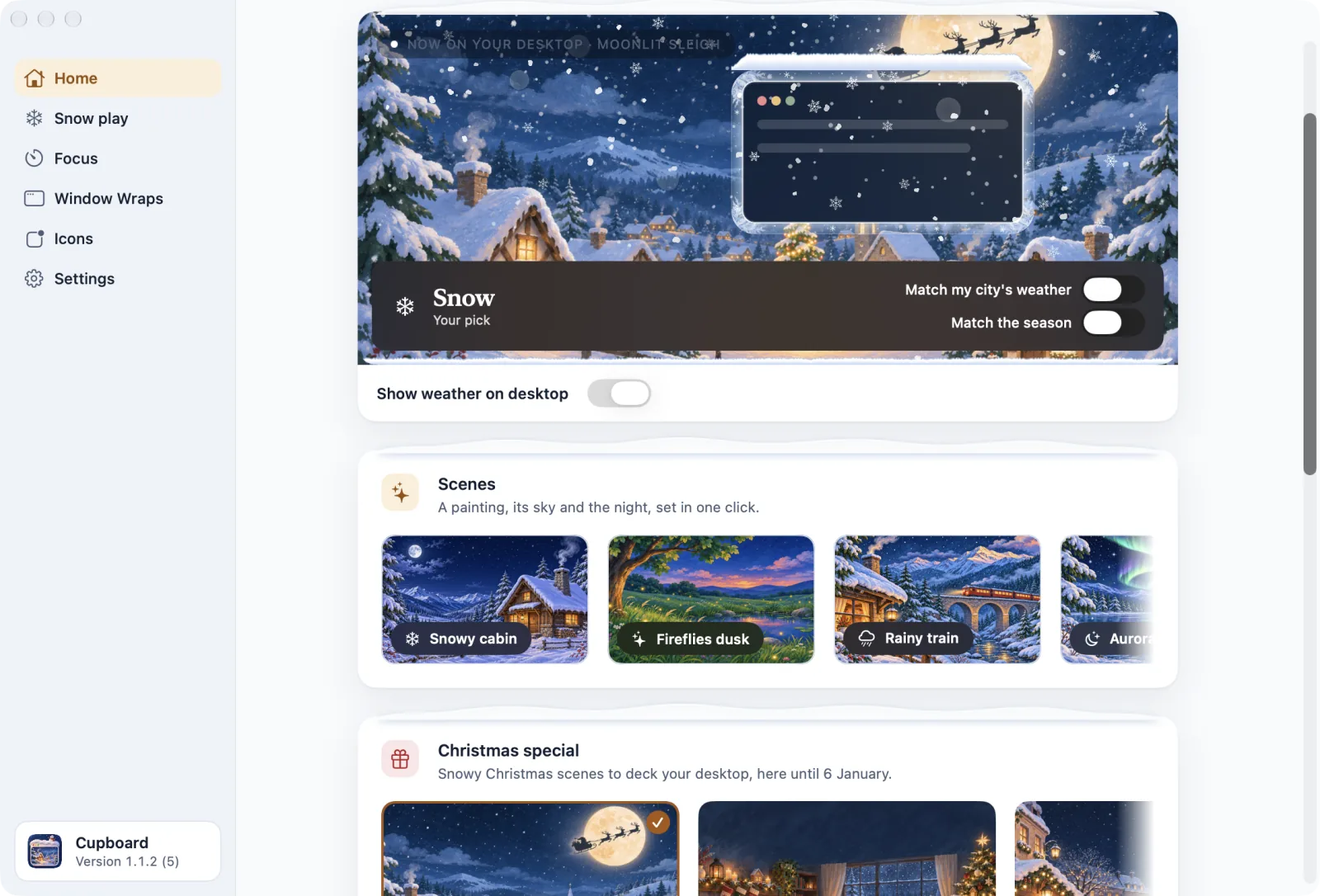
Cupboard is our own take on this. It sets a hand-painted scene as the wallpaper and lets snow settle on your windows, and its motion pauses when the desktop is covered, when your Mac sleeps or locks, and when Low Power Mode is on. If macOS Reduce Motion is switched on, the paintings stay still.
Quiet the notifications
Pair it with a Focus mode. In System Settings, Focus lets you silence notifications for a set of apps and people. A winter Focus that mutes everything except calls from family is a small ritual that tells your brain the room has changed.
Dress the small things
Once the big surfaces are right, a few details finish the picture:
- The Dock. Reduce its size a little, or auto-hide it, so it is not a hard grey bar across the scene. See make the Dock festive for more.
- App icons. A set of icons in a matching palette makes the Dock look designed. We explain how to do it safely in how to theme Mac app icons.
- A countdown. A visible number of days to a holiday gives the season some shape. There are low-tech ways to do it, covered in a Christmas countdown on your Mac.
Keep it easy to undo
The best seasonal setup is one you can reverse in a minute. Note your original wallpaper before you change it, keep your icon changes behind a single reset, and avoid anything that modifies system files. Come January you will want your normal desktop back without a weekend of repair work.
It also helps to set a reminder to change things again. Three seasons of cosy is plenty; a snow scene in July is charming for a day and odd after that.
A simple starting plan
If you only have ten minutes, do these in order: pick a warm night wallpaper, switch on Night Shift on a sunset schedule, hide desktop icons, and add one source of slow motion that pauses when you do not need it. That is enough to change how the screen feels without turning your computer into a project.
If you would like a single app that handles the wallpaper and the snow together, take a look at Cupboard. It is a one-time purchase, and you can get it here whenever you are ready. Everything else in this guide works with or without it.