Make the Dock festive
· 5 min read
Settings, icons and decoration that give your Dock a winter look without making it harder to use.

The Dock is the one part of the Mac interface that is on screen almost all the time, which makes it the best place to add a bit of seasonal charm, and also the easiest place to overdo it. A festive Dock should look warm and a little playful, and it should still do its job: letting you find and open things quickly.
This guide starts with what macOS offers on its own, moves on to the visual details, and ends with ways to add actual decoration. Every step can be reversed.
Start with the settings that change the feel
Open System Settings and choose Desktop and Dock. A few small adjustments change the character of the Dock before you add anything.
- Size. A slightly smaller Dock gives the wallpaper more room and looks more refined. Try a size a notch below what you use now.
- Magnification. With magnification on, icons swell as the pointer passes over them. A modest amount feels lively. A lot looks like a toy.
- Position. The bottom is traditional, but a Dock on the left or right keeps the lower edge of a wide wallpaper clear, which suits panoramic winter scenes.
- Minimise effect. Scale is quieter than Genie. Choose whichever suits your taste, but fewer flourishes read as more calm.
- Automatically hide and show. If you want your painted wallpaper to be the star, auto-hide the Dock. It slides away until you move the pointer to the edge.
- Show recent applications. If the recents section on the right makes the Dock look cluttered, switch it off.
Tidy before you decorate
A festive Dock begins with an orderly one. Remove apps you never open, by dragging them out of the Dock until they vanish in a puff of smoke. You are only removing the shortcut, not the app. Group the rest: communication together, creative tools together, and so on. A shorter, tidier Dock lets any theme you add look intentional rather than crowded.
You can add spacers to create gaps between groups. A spacer is a blank tile that you add with a short Terminal command, then drag into position. Search for the current instructions before you run it, because the exact syntax matters, and you can remove a spacer the same way as any other Dock item.
Dress the icons
Icons are where the biggest visual change happens. A Dock full of icons in different colours and styles looks busy. A set in a shared palette, deep blue and frosty white with a warm glow, looks like one family. We explain the manual method, what to design and the pitfalls in how to theme Mac app icons.
Two practical points. First, theme your Dock's most-used icons first and see how it feels before you do the rest. Second, remember that macOS protects its own apps, so Mail, Safari, Music and others will keep their usual icons; expect a Dock that is mostly, not entirely, themed.
Folders and stacks can be themed too. A folder in the Dock, such as Downloads or a project folder, can be given a custom icon in the same way as an app, and it is a nice place to put a snowy folder or a gift box.
Choose a calm background behind it
The Dock sits on top of your wallpaper, so the two have to work together. A wallpaper with a dark, quiet lower edge makes the Dock icons pop. A wallpaper that is very bright at the bottom washes out the Dock's frosted shelf, and one that is full of detail behind the Dock makes everything look messy. When you pick a winter wallpaper, check the lowest tenth of the image. Our guide to winter wallpapers for Mac has more on what to look for.
Add real decoration
Once the layout and icons are settled, you can add things that make the Dock feel like a festive place, instead of just a coloured shelf.
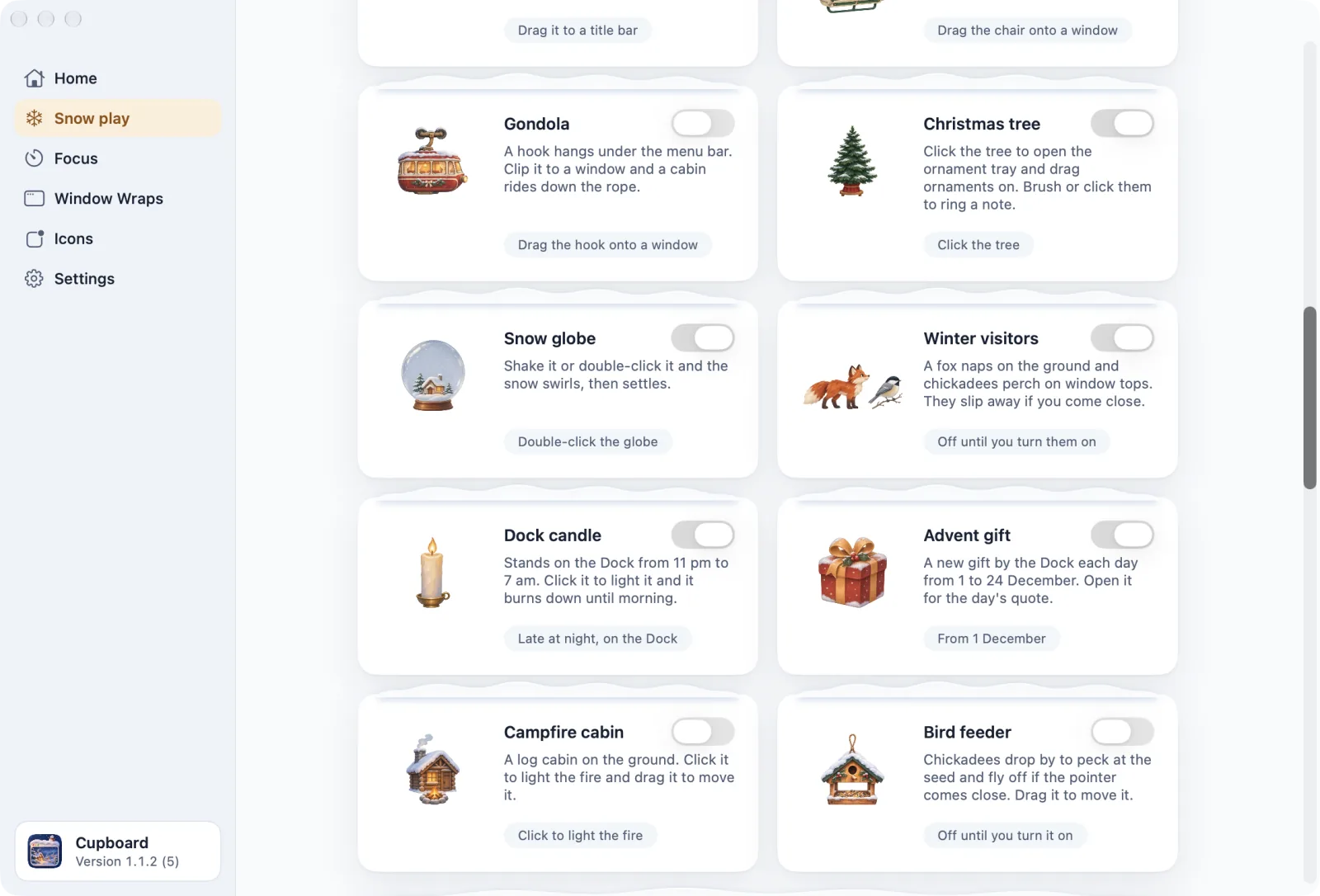
- Snow along the top. Imagine the Dock with a thin line of snow that builds up along its upper edge, and that you can brush away. That is something Cupboard does: snow settles along the bottom of your screen and the Dock as it falls, and you can sweep a pile aside with the pointer.
- A little village. Cupboard also has a tiny winter village that lives along your windows and the Dock: a penguin that waddles along window tops, a skating pond, a cocoa stand, a night owl and a gingerbread house. You can drag the pond, the stand or the house to where you want them.
- Window wraps. The same app can drape a knitted band, a snow cap or a string of fairy lights over your open windows, which matches a decorated Dock.
- Lights. A strip of real fairy lights behind the monitor makes a surprising difference, because the glow reflects on your desk and wall and makes the whole setup feel connected.
None of these is required. They are the difference between a Dock that is tidy and one that has a small amount of personality. If you want to try the Cupboard version, you can see what it looks like on the homepage and get it whenever you are ready.
Keep it usable
A festive Dock is still a tool. Three checks keep it that way.
- Can you still tell apps apart at a glance? If themed icons look alike, undo some.
- Does decoration cover anything you click? Snow and little characters that sit on the Dock should never block clicking an icon.
- Does it behave in full screen and on battery? Decorations that animate should pause when you are in a full-screen app and in Low Power Mode.
Reversing it all
Before you start, note your settings, or take a screenshot of your Dock. To undo: restore the sizes, remove the spacers, remove custom icons by pasting nothing back in Get Info or using the reset in the tool that applied them, and quit any decorating app. Everything in this guide leaves no permanent changes to the system.
Once the season is over, the same settings can be adjusted again for spring. For now, enjoy a Dock that looks like it has put on a scarf.