Best winter wallpapers for Mac (4K)
· 6 min read
How to choose and set a winter wallpaper that looks sharp on a Retina display, with sources and settings.
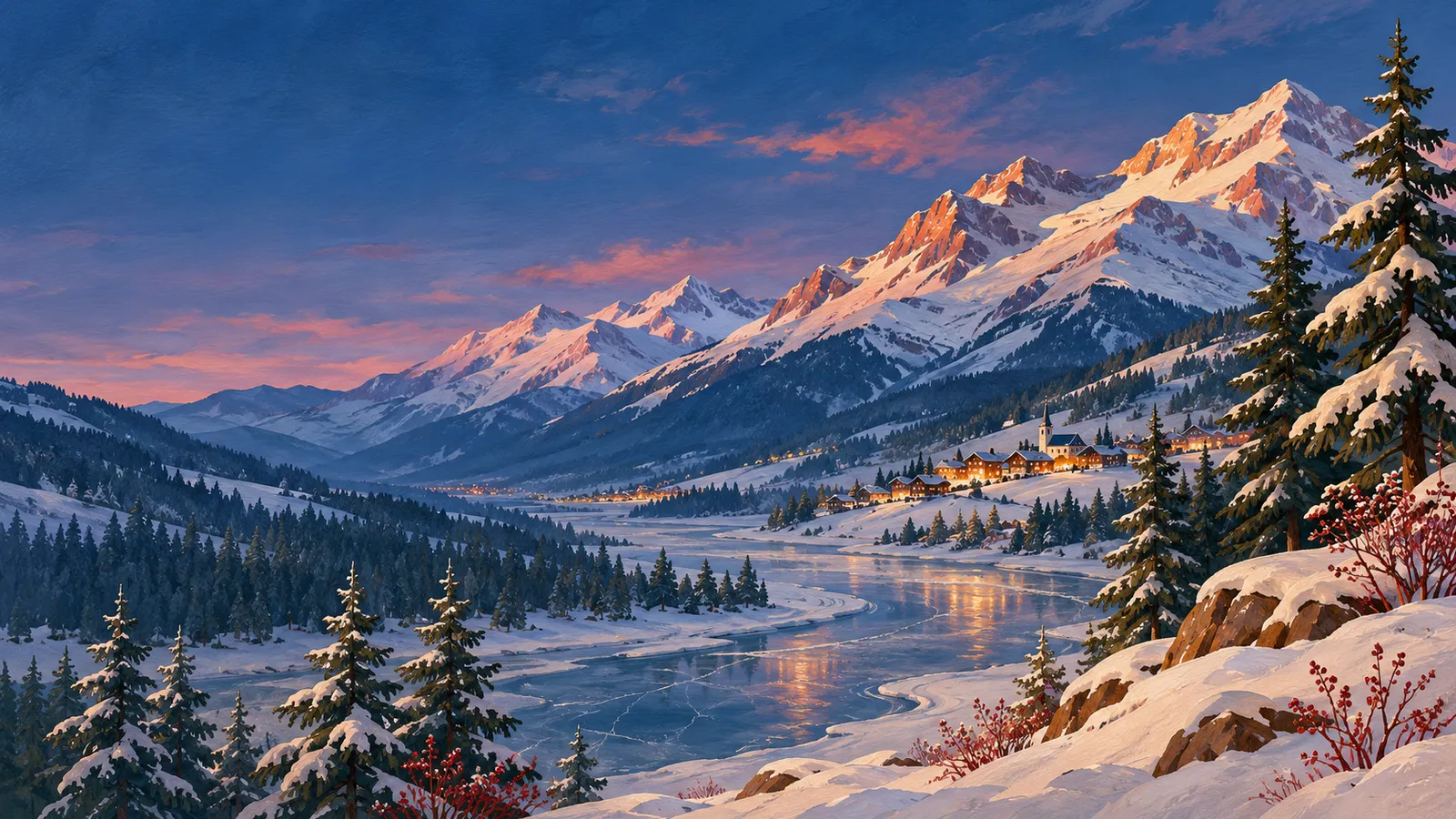
A winter wallpaper is the quickest way to change how your Mac feels in December, and it is free. But a lot of the winter wallpapers you will find are cropped badly, compressed until the snow turns to mush, or so busy that your icons disappear. This guide explains what to look for, which kinds of scene hold up as a desktop, and how to be sure an image is sharp on your particular screen.
Get the resolution right first
Resolution is the most common reason a wallpaper looks disappointing. Mac displays have a lot of pixels, and a picture that is too small is stretched and goes soft. The target is an image at least as wide as your screen's native pixel width. Here are the native sizes of some common Mac displays:
- 13-inch MacBook Air: about 2560 by 1664 pixels
- 14-inch MacBook Pro: about 3024 by 1964 pixels
- 16-inch MacBook Pro: about 3456 by 2234 pixels
- 24-inch iMac: 4480 by 2520 pixels
- Studio Display: 5120 by 2880 pixels
Those numbers explain why people say "4K". A 4K image is 3840 by 2160, which is more than enough for every laptop above and close to the iMac. For a 5K display, look for something larger, or accept a little softness from upscaling. To find your own screen's numbers, open the Apple menu, choose About This Mac, and look at the display entry.
Aspect ratio matters as well. Most Mac laptops are slightly taller than the widescreen 16 by 9 ratio of a typical 4K image, so macOS crops the sides or the top and bottom to fill the screen. Choose a picture whose important parts sit near the middle, or pick the Fit option in Wallpaper settings and accept thin bars.
What makes a winter scene work as a desktop
A wallpaper has a different job from a poster. It sits behind icons, windows and the menu bar, so it needs to be easy to live with. Four qualities set the good ones apart.
- Quiet areas. Keep some calm space on the left and along the top, where icons and the menu bar sit. A scene with all its detail in the middle will be hidden by your windows anyway.
- Contrast you can use. Mid-dark scenes make white icon labels and the menu bar easier to read. Very bright, snowy scenes can wash out text.
- Warm accents. The cosiest winter images pair cold blues with a small amount of warm light, such as windows, lanterns or a fire. Pure white and grey winter scenes often feel colder than you wanted.
- Detail that survives viewing time. You will look at this image for hundreds of hours. Scenes with a lot of small things to find stay interesting longer than a single big gradient.
Scene types that hold up
Cabins and villages at night
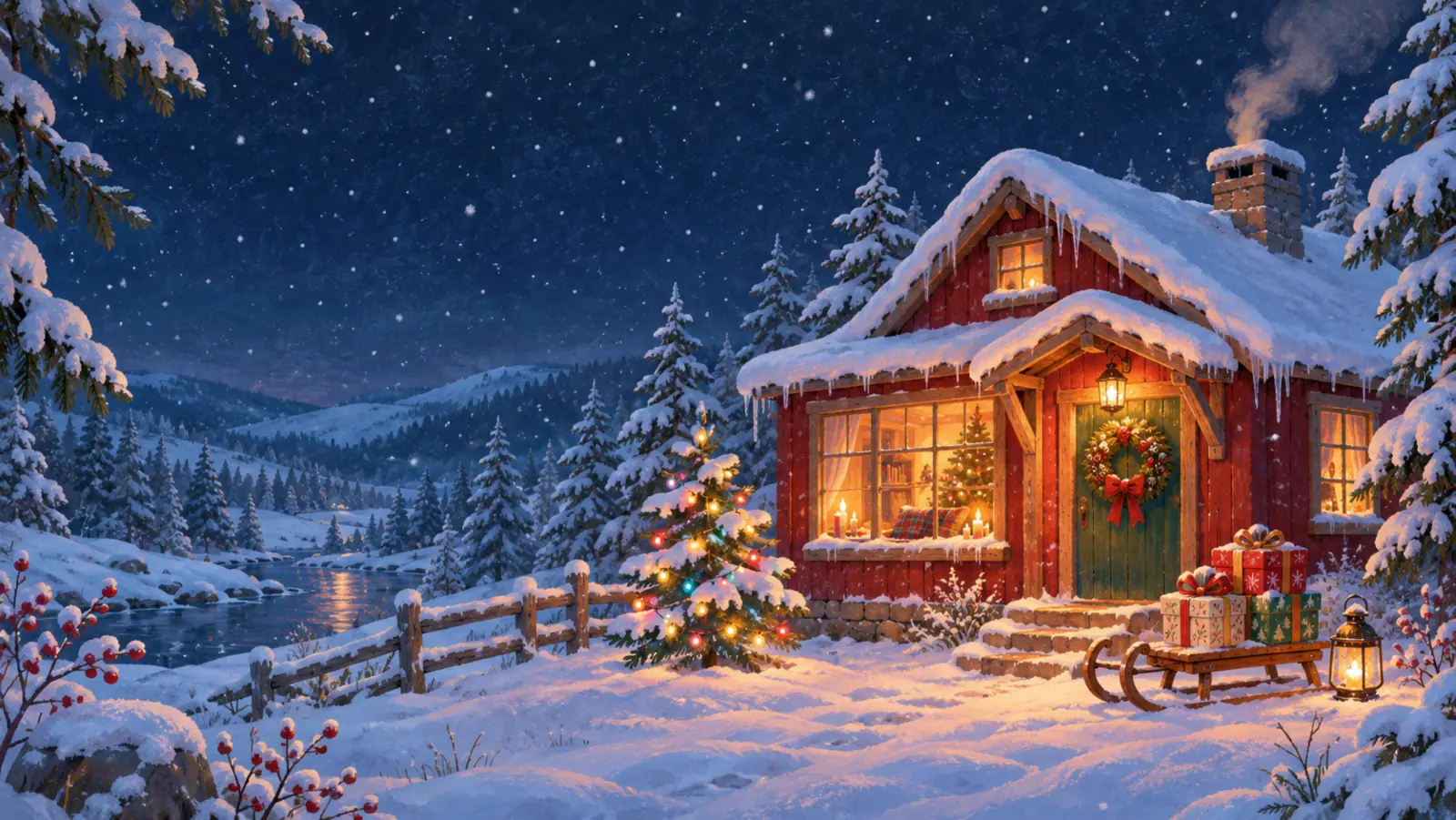
The classic. A lit window in a snowy landscape is the clearest picture of warmth against cold, and it leaves plenty of dark sky for icons. These scenes are the most popular for good reason, and they look at home in dark mode.
Lanterns and festive lights
Paper lanterns, string lights and a lit tree add colour without clutter. They suit people who like a festive look but do not want red and green everywhere. A lane of lanterns also tends to have a natural path of light through the picture, which keeps your eye calm.
Northern lights and starry skies
Aurora wallpapers are open and moody, and the sky is mostly a gradient, which makes them gentle behind busy windows. They suit people who find a village scene too busy to work in front of.
Cosy interiors
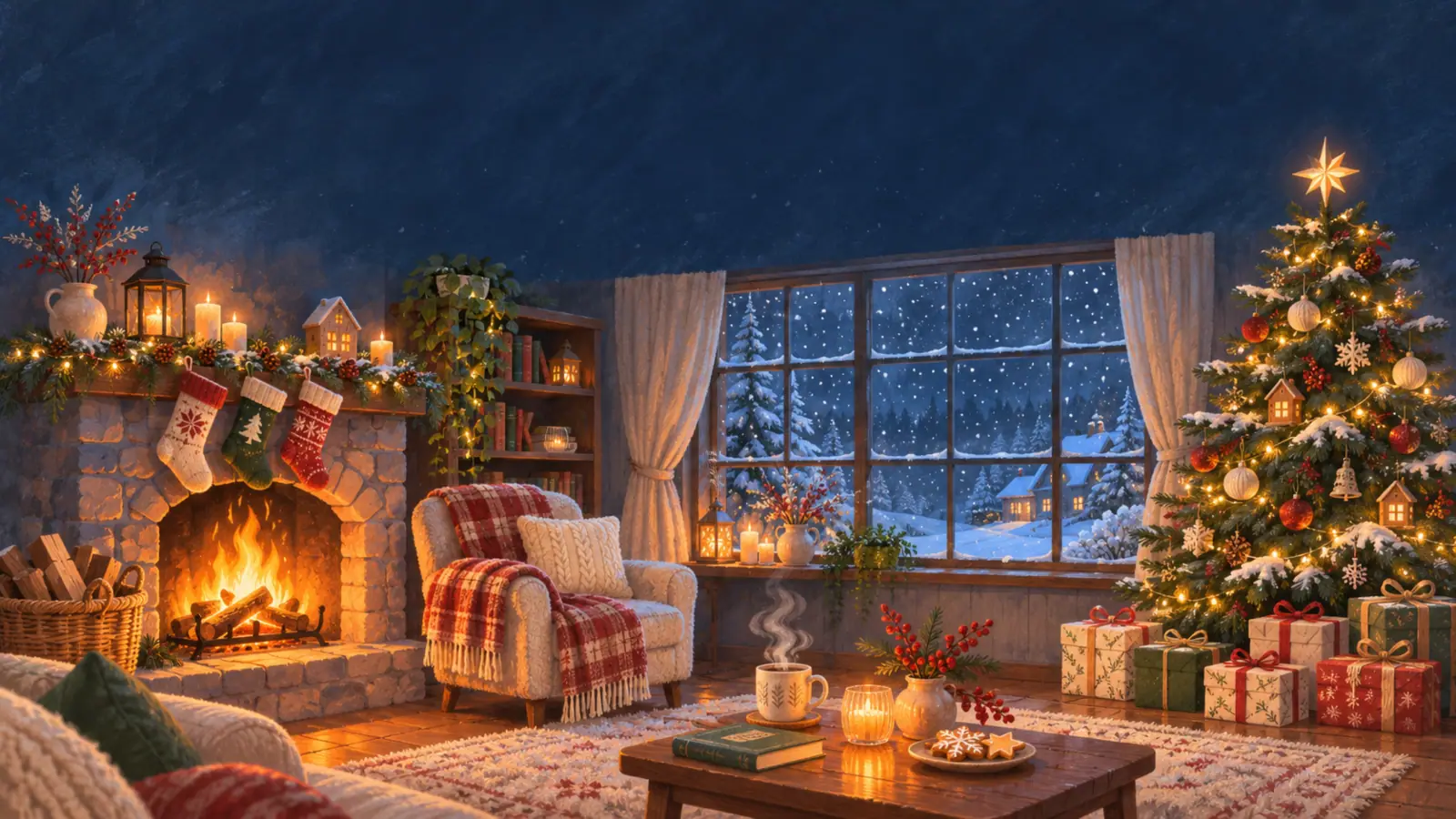
A fireplace, a stack of books, a knitted blanket, a frosted window with a cup of cocoa. Interiors are the most intimate winter wallpapers. Because they are close-up, they are best on a clean desktop with few icons.
Minimal snowfields
A soft white horizon, a single pine or a long frozen lake. Minimal scenes are easy on the eyes and let your windows do the talking. If you pick one, look for a hint of blue or violet in the shadows so the scene does not feel flat.
How to set a wallpaper on macOS
Setting a picture is straightforward. Open System Settings and choose Wallpaper. Click Add Photo, or drag an image from Finder onto the wallpaper preview. Pick Fill, Fit, Stretch, Center or Tile from the menu; Fill is the best choice for most pictures. If you have more than one display, you can choose a different image for each. To rotate through a folder of images, choose the folder and set how often the picture should change.
Save your original wallpaper's name somewhere first if you want to return to it exactly. System wallpapers are easy to find again in the same settings pane.
Where to find good images
There are many sources for winter wallpapers, and the main thing to check is the licence. Photo libraries with permissive licences are a good start, and so are artists who explicitly offer desktop versions of their work. Avoid random image-search results unless the page says you can use them; many are copyrighted. Download the largest version offered and avoid ones that have been re-saved many times, because repeated compression leaves blocky artefacts in smooth areas like snow and sky.

Hand-painted wallpapers in Cupboard
Cupboard includes eleven hand-painted winter and night scenes, drawn at 4K resolution, and four of them are night scenes. They include a snowed-in cabin, a lantern street, aurora over a frozen lake, a night train, a lit village square at Christmas, a rainy glasshouse café, and a few more. Each one is painted with the desktop in mind, with quiet space for icons and warm light against a cool sky.
They can also move gently, with snow drifting down, rain running down glass, or fireflies over a pond, and the app can change the lighting between day, evening and night. If you only want the pictures as still wallpapers, that works too: turn the motion off and any painting becomes a plain, still wallpaper. You can see the full set in the wallpapers section of the homepage, and buy it if you want them on your Mac.
A quick checklist before you commit
- Is the image at least as wide as your screen's native pixels?
- Is the important part of the picture near the middle, so it survives cropping?
- Can you still read your icon labels and the menu bar?
- Does it have some warmth, not just white and grey?
- Do you have the right to use the image on your desktop?
Answer yes to those five and you will have a winter wallpaper that stays good all season. And if you want it to move, our guide to live wallpapers on macOS explains what to expect from your battery.