Snow on your Mac desktop: options compared
· 5 min read
A fair look at the ways to get snow on macOS, from free screen savers to apps, with the trade-offs of each.

Every December a lot of people want the same small thing: snow falling on their Mac. There is no single switch for it in macOS, so you end up choosing between several different approaches. They look similar in a screenshot, but they behave very differently in daily use. This is an honest look at the main options, what each one is good at, and where each falls short.
We make one of these tools, so we will say where our own approach has trade-offs too. Pick whatever fits how you work.
What you are actually choosing between
Snow on a desktop usually comes in one of five forms. They differ in three ways that matter: where the snow is drawn (behind your windows or on top of them), how much of your Mac's attention it takes, and whether you can interact with it.
1. A static winter wallpaper
The simplest option is a still picture of a snowy scene. It costs nothing in battery, works on every Mac, and never gets in the way. The downside is obvious: nothing moves. For many people that is exactly right, and it is the baseline everything else should be measured against. We wrote a fuller comparison in Cupboard versus a static wallpaper.
2. A dynamic wallpaper from macOS
macOS has long supported dynamic wallpapers that change between light and dark versions through the day. They bring the feeling of time passing without any animation. There is no falling snow, but you get a scene that shifts from morning to night, which pairs well with a winter picture.
3. A video or looping live wallpaper
Some apps play a looping video behind your windows. This gives the richest picture, and a good loop of falling snow is lovely. The cost is that decoding video continuously uses power, and a long, high-resolution loop uses more. How much depends heavily on the app: some pause when something covers the desktop or when you are on battery, and some do not. If you go this route, look for pause behaviour and check Activity Monitor for a day. Our piece on live wallpapers, battery and performance lists what to watch for.
4. A transparent snow overlay
Another approach draws snowflakes in a transparent layer above all your other windows. It is easy to understand and it makes the whole screen feel wintry, including over your work. Its main trade-off is the same as its main feature: the flakes sit on top of what you are doing. Good overlays let clicks pass straight through, hide during full-screen video and calls, and let you cap the flake count. A weaker one can distract when you are reading or editing.
5. Snow that lives with your windows
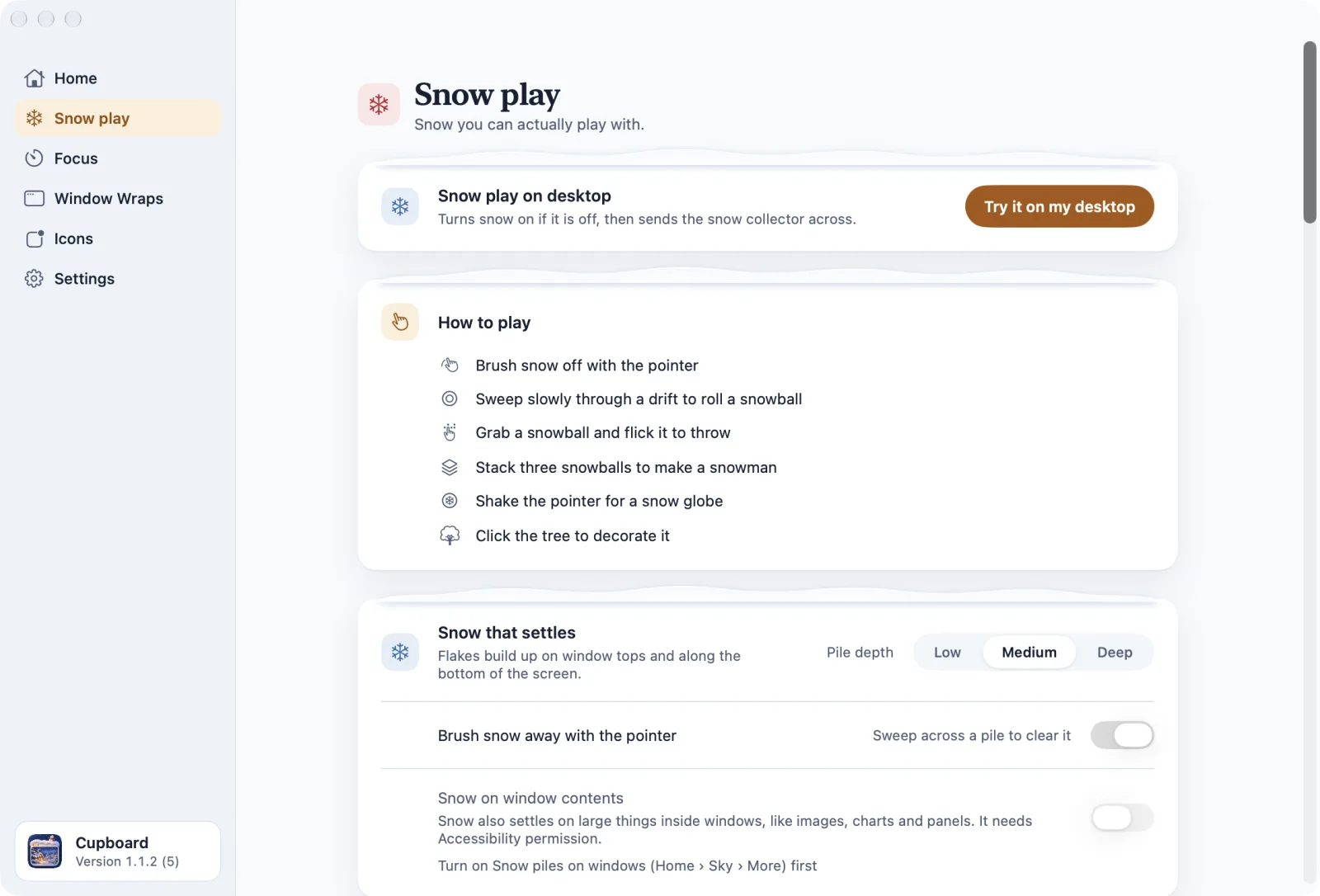
The newest idea is to treat snow as part of the desktop rather than a layer over it: flakes land on the tops of your windows, pile up, and can be brushed away. This is the approach Cupboard takes. Snow settles on window tops and along the bottom of the screen and Dock, you can sweep a pile into a snowball with the pointer, throw it, or stack three to build a snowman. Because the effect responds to your actual windows, it feels more like a place and less like a filter.
How they compare
Rather than a table, here are the questions worth asking about any option, with the usual answers.
- Does it cost battery? A static or dynamic wallpaper costs essentially nothing. A looping video costs the most. Overlays and window-aware snow sit in between and depend on how well they pause. Look for a clear statement that the effect stops when it cannot be seen.
- Does it get in the way? A wallpaper never does. An overlay might, unless clicks pass through it and it avoids your active window. Window-aware snow should stay behind or beside your work and clear away when you move or resize a window.
- Can you play with it? Only the interactive options let you touch the snow. For some people that is the whole point; for others it is a distraction.
- How does it handle multiple displays and full screen? A well-behaved effect pauses on a display that is showing a full-screen app. Test this before you commit.
- What does it cost? Wallpapers are often free. Apps are typically a small one-time price or a subscription. Check which one before you settle in.
What to test in the first ten minutes
Whichever route you take, a short checklist saves you from regret a week later.
- Open a full-screen video or a video call and see whether the snow stops.
- Put the Mac on battery and watch how quickly the percentage falls for a quarter of an hour, compared with a static wallpaper.
- Work normally for a few minutes. If you notice the effect at all in a bad way, adjust the density or choose a calmer option.
- Turn on Reduce Motion in System Settings, Accessibility. A considerate app should respect it and fall back to something still.
- Quit the app and confirm your original wallpaper returns.
Which one should you pick?
If you want zero risk, use a static winter wallpaper and enjoy it. If you like the idea of time passing, a dynamic wallpaper is a pleasant step up. If you want real movement and have a Mac that can spare the battery, a live wallpaper or an overlay will do it, as long as it pauses properly.
If you want snow that reacts to your windows and gives you something to do for a minute between tasks, that is where Cupboard sits. Its motion runs in macOS's own animation engine, so it does little drawing work of its own, and it pauses when windows cover the desktop, when your Mac sleeps or locks, and in Low Power Mode. It is a one-time purchase and runs on macOS 14 or later. You can see what is included or get it if it sounds right.
None of these is the one correct answer. They are different trade-offs between richness, battery and distraction, and the best choice is the one you will still enjoy in the second week of December.